Plan the day, not the chaos.
Mom Life Planner keeps your to-dos, your kids’ activities, your appointments and a little room for you in one calm place.
Free · No ads · No account · Your plans stay on your device
Everything a busy day needs
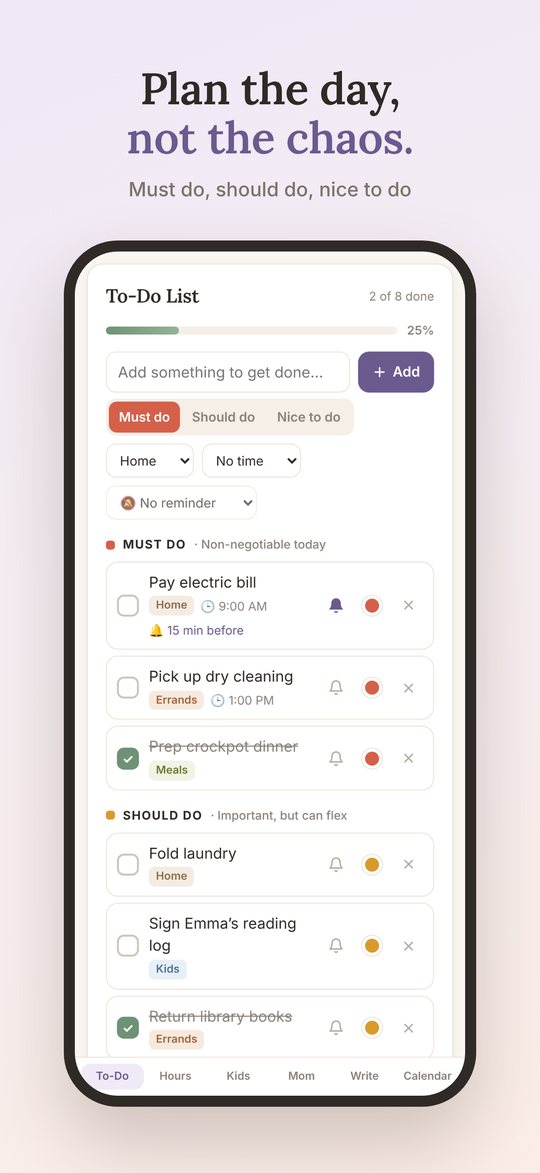
Prioritized to-dos
Sort tasks into Must do, Should do and Nice to do. Keep your must-dos to three, and roll anything unfinished to tomorrow.
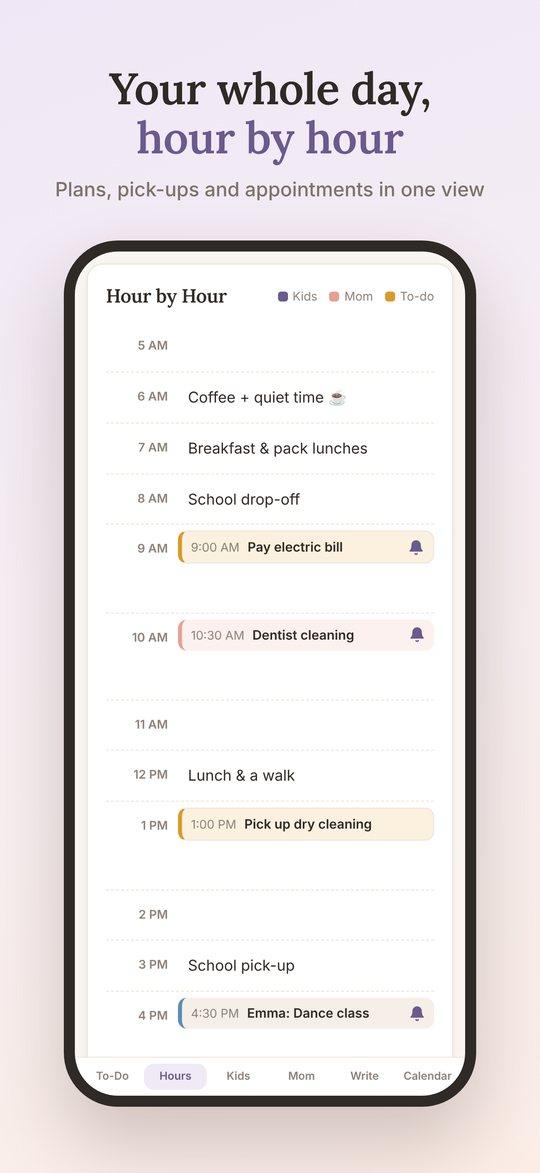
Hour by hour
Plan from 5 AM to 10 PM. Timed to-dos, activities and appointments land in their time slots automatically.
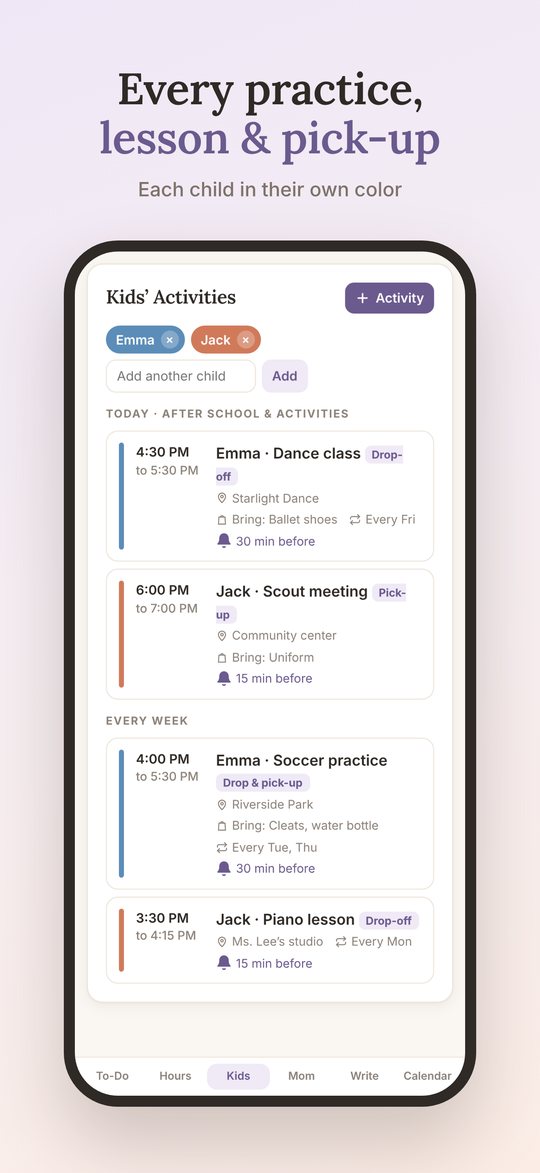
Kids’ activities
Practices, lessons and pick-ups for every child, with where to go, what to bring and who’s driving.
Reminders that work
Get a notification before anything important, even when the app is closed.
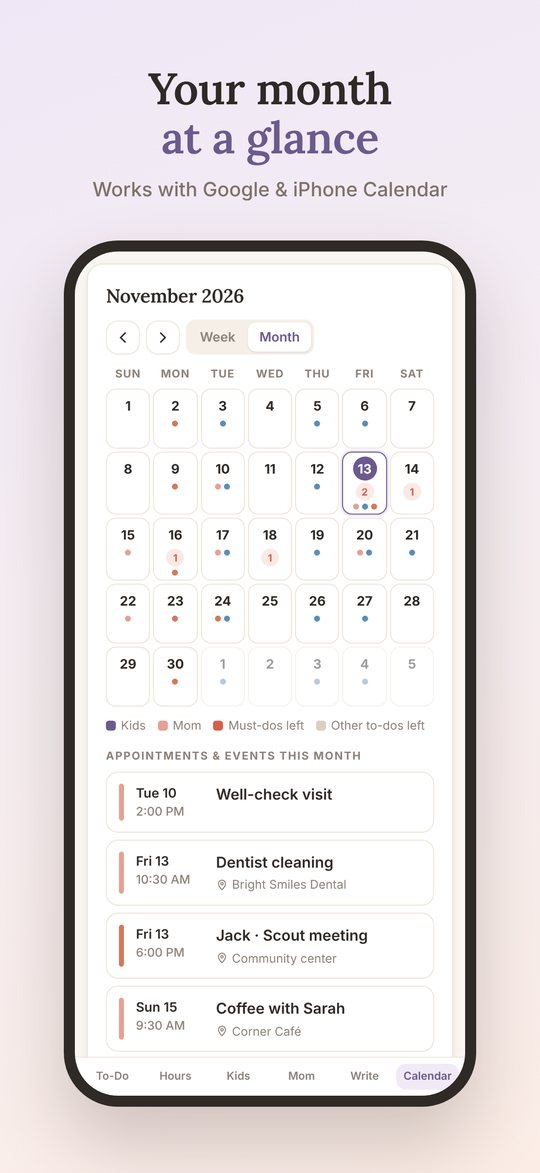
Works with your calendar
See your Google or iPhone calendar events in your planner, and send activities and appointments back.
Write with Apple Pencil
A writing page for every day, with colors, a highlighter and six fonts.
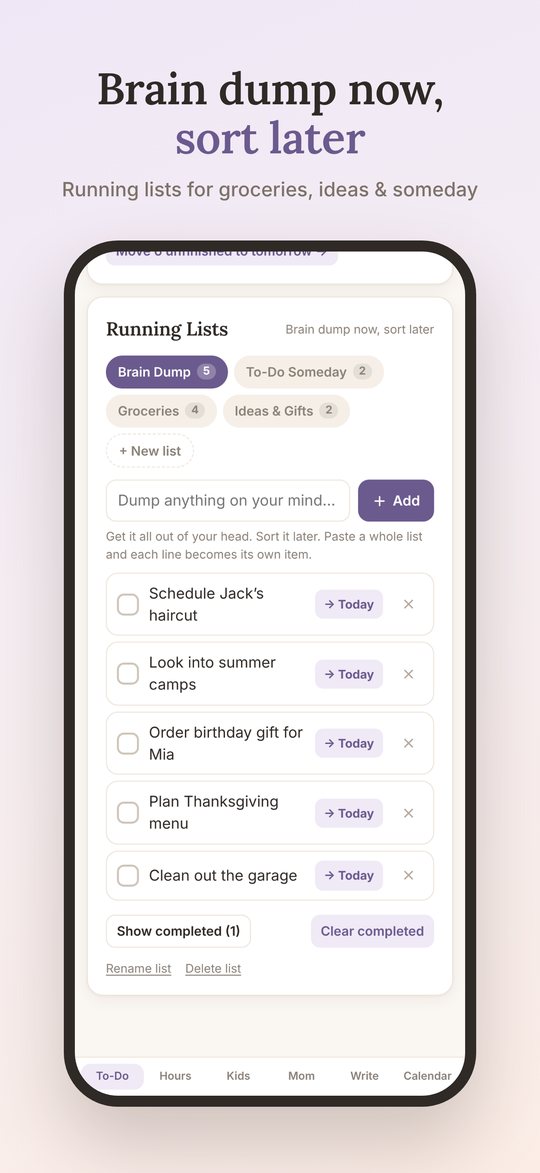
Running lists
Brain dump, groceries, someday to-dos and ideas, and send any item to today in one tap.
Week & month views
See the whole week or month at a glance, with each child in their own color.
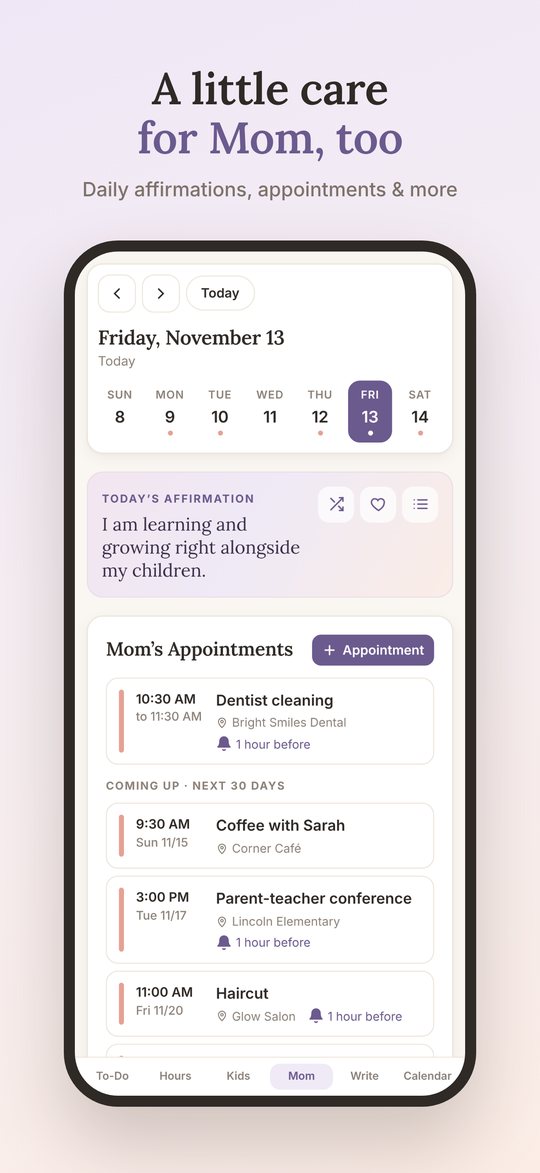
Care for you, too
A daily affirmation, a water tracker, meal planning, and one thing just for you.
Health & fitness
Vitamin and supplement reminders, a meal and macro log, a workout journal and an optional peptide tracker.
A planner for everyone
Choose Mom, Dad, Teen, College or Everyday. Each style fits its sections, lists and colors to your life.
Take a look
Private by design
Your planner lives on your phone. No account, no ads, no tracking, and nothing is sent to us. Read the privacy policy.
Questions
Is Mom Life Planner free?
Yes. Every feature is free. There are no ads, subscriptions or in-app purchases.
Do I need to make an account?
No. Open the app and start planning. There’s nothing to sign up for.
Where is my information stored?
Only on your iPhone or iPad. Your plans are never sent to us or anyone else.
Does it work with Google Calendar?
Yes. Add your Google account to your iPhone’s Calendar settings, then tap “Link my calendar” in the app’s Calendar tab.
Can I use it on my iPad with Apple Pencil?
Yes. The Write tab gives you a page for each day with a pen, pencil, highlighter, eraser, colors and fonts.
How do I move my planner to a new phone?
Tap the bell, then “Save a backup,” and save the file to iCloud Drive or email it to yourself. On the new phone, tap “Restore from backup.”
More help is on the support page.